Amazon backend keywords: how to use the 250 bytes
Backend search terms are the one part of your Amazon listing nobody sees, so mistakes sit there for months. Here's how the 250-byte limit works, what Amazon bans and how to fill the field properly.
Ashish · 7 min read
Backend search terms are the strangest part of an Amazon listing. Shoppers never see them, Amazon never tells you whether they're working, and if you get them wrong, nothing visibly breaks. Your listing just quietly misses searches it should have shown up for.
That's why the same mistakes sit in the field for years: brand names, words already in the title, commas everywhere, or a string so long that none of it counts. This guide covers how the field works, using Amazon's own help pages, and then fills one from scratch so you can see every decision.
What backend keywords actually are
In Seller Central, backend keywords live in a field called Generic keyword (you'll also see it called Search Terms). Amazon describes them as keywords "used by the search engine for lexical matching between an ASIN and a query" (Amazon help: use search terms effectively).
In plain words: if a shopper types a word that's in your backend terms, your product can be matched to that search, even though the word appears nowhere on your page. It's the place for the ways people describe your product that don't fit, or don't belong, in your title, Item Highlights or bullets.
It isn't a ranking boost. Matching gets you into the pool of results. Where you show in that pool depends on everything else: sales, price, reviews and how well the listing converts.
The 250-byte limit, explained
Amazon's UK help page puts it simply: the search terms field is limited to less than 250 bytes, for new and existing listings (Amazon help, UK).
Bytes, not characters. For plain English letters and numbers, one character is one byte. Other characters take more:
| Character | Bytes |
|---|---|
| a to z, A to Z, 0 to 9 | 1 each |
| German umlauts like ä, ö, ü | 2 each |
| Japanese or Chinese characters | 3 or 4 each |
So a French or German search term string can hit the limit well before 250 characters. If you sell in several stores, count each one separately.
What happens if you go over? This is the bit that hurts. Amazon's UK help page says that if your search terms are over the limit, none of them are indexed for that product. Not the extra words. All of them. The Seller Central box has a byte counter that stops accepting text at the limit, but a spreadsheet cell won't count bytes for you, so check the length yourself before a bulk upload.
Do spaces count? Amazon's FAQ says spaces and punctuation aren't counted when it calculates the length. We'd still keep the whole string, spaces included, under 250 bytes. It costs you a word or two at most, and you never have to wonder how a particular tool or template counts.
What to put in the field
Amazon's tips, in order of how much they matter in practice:
- Synonyms. The other names for your product. "Hand weights" for dumbbells, "tumbler" for a cup.
- Spelling variations, not misspellings. "Barbeque" next to "barbecue" is fine. Amazon says you don't need common typos.
- Abbreviations and alternative names. "lb" and "kg", "bpa", "usb c".
- Uses and people. "Rehab", "physio", "beginner", "kids", if they're true for your product.
- Lowercase, spaces between words, no punctuation. No commas, semicolons or dashes needed.
- Singular or plural, not both. Amazon says you only need one.
- No small filler words. Skip "a", "an", "and", "by", "for", "of", "the", "with".
- No repeats. Each word once. Search matches the word wherever it sits, so "pink yoga mat" and "yoga mat pink" in the same field is wasted space.
One more habit that saves space: don't repeat words already in your title or highlights. Amazon already uses those for search, so repeating them in the backend adds nothing.
What Amazon doesn't allow
These aren't style tips. Amazon says breaking them can get your listing suppressed and put your account health at risk:
- Brand names, yours or anyone else's. No "nike", no competitor names.
- ASINs.
- Profanity and offensive terms.
- Temporary words like "new", "brand new", "latest", "on sale", "limited time", "today", "just launched".
- Subjective words like "best", "cheapest", "amazing", "popular", "trending", "fastest", "effective".
Amazon also notes it may not use every term you supply. Its systems decide which terms are relevant, and that can change over time.
Filling the field: a worked example
This is a made-up product to show the process. "Ironvale" isn't a real brand.
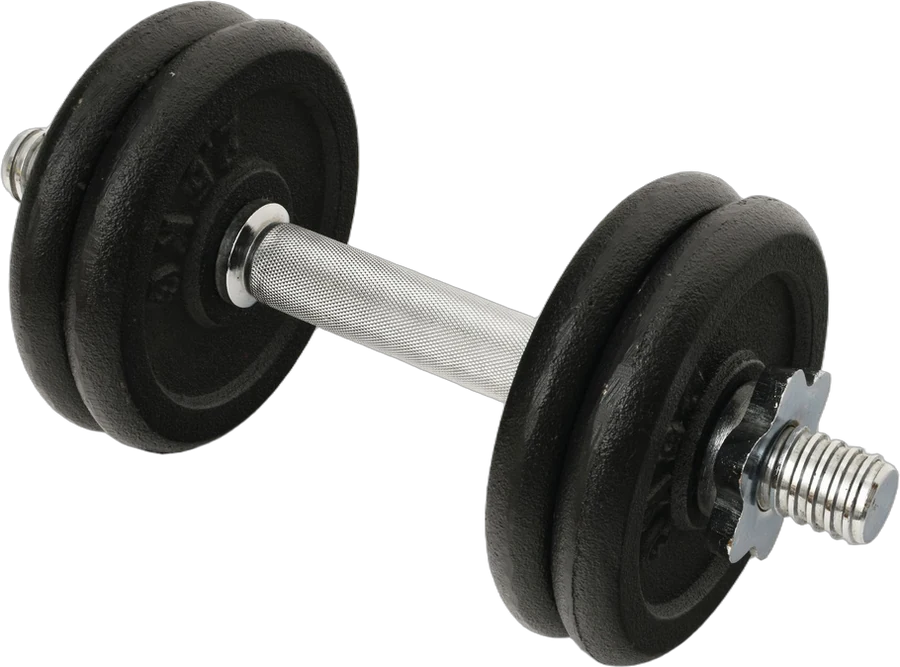
The product is a pair of 5 lb neoprene-coated hex dumbbells.
Title (58 characters):
Ironvale Neoprene Hex Dumbbells, Set of 2, 5 lb Each, Teal
Item highlights (73 characters):
non-slip grip, flat sides stop rolling, for home gym pilates and aerobics
Now the backend. Start by brainstorming every way a buyer might search, then cut.
First draft (what most sellers paste in):
Ironvale dumbbells, best hand weights, NEW 2026, dumbells, weights, weight set, pilates, gym, free weights for women, for men, bowflex alternative
What had to go, and why:
| Removed | Reason |
|---|---|
| Ironvale | Your own brand. Not allowed |
| bowflex | Another brand. Not allowed |
| best, NEW, 2026 | Subjective and temporary words |
| dumbbells, pilates, gym | Already in the title or highlights |
| dumbells | A common misspelling. Amazon says you don't need these |
| weights, weight | Pick singular or plural, not both |
| for, alternative, commas | Filler words and punctuation |
Final backend search terms (155 bytes):
hand weight free pair women men workout exercise fitness strength training toning barre physio rehab beginner arm shoulder upper body walking kg 2kg coated
Every word appears once, none repeats the title or highlights, there are no brands, and it's well under the limit. That leaves room to add terms later once you see which searches bring buyers in. The details that help a buyer decide, like the weight, the grip and the coating, belong in your bullet points, where shoppers can read them.
How to check the byte count
You don't need special software:
- Google Sheets: paste the terms into a cell and use
=LENB(A1), which returns the length in bytes. - Any online byte counter: search "byte counter" and paste. Make sure it's counting bytes, not characters.
- Seller Central: the field itself stops at the limit, which is useful as a final check.
How to add or update search terms
- One listing: in Seller Central, go to Manage Products, choose the product, click Edit, open the Product details tab and fill the Generic keyword field.
- Many listings: download the Category Listings report from the Inventory menu, edit the column and upload it as a partial update. If you can't see that report, Amazon says you can ask Selling Partner Support to turn it on.
For some product types, the field isn't optional. Since 6 December 2023, Amazon requires Generic keyword for 23 product types, including board games, blankets, balloons, bedding sets, party favours and art and craft supplies. The full list is on Amazon's search terms help page.
Where the words should come from
The rules tell you how to fill 250 bytes. They don't tell you which words earn a place. That comes from research: Amazon's search bar, your competitors' listings, reviews and, if you have them, Amazon's own search reports. We cover each free method in our guide to finding keywords for your Amazon listing.
Doing that research for one product is a pleasant hour. Doing it for 80 products, then checking every string for repeats, brand names and byte counts, is where the hours go. YelloShelf does that part. It works from your product photos, checks live Amazon results and real search numbers for products like yours, and writes backend search terms that don't repeat your title, alongside the title, highlights and bullets. It doesn't have a free plan or trial. You buy a credit pack, starting at $10, and your first purchase comes with a money-back guarantee. We're helping you remove the manual, tedious, time-consuming work. You still read it, edit it and paste it in yourself.
Quick checklist
- The whole string is under 250 bytes, spaces included.
- Words are lowercase and separated by spaces, with no commas.
- No brand names, ASINs, temporary words or subjective words.
- No word repeats, and nothing repeats your title or highlights.
- Singular or plural, not both, and no small filler words.
FAQ
Is the Amazon backend keyword limit 250 bytes or 250 characters?
It's bytes. Amazon limits search terms to less than 250 bytes. For plain English letters and numbers that's the same as characters, but letters like ä take 2 bytes and Japanese or Chinese characters take 3 or 4.
Do spaces count toward the 250 bytes?
Amazon's FAQ says spaces and punctuation aren't counted when it calculates the length. Keeping the whole string, spaces included, under 250 bytes is the safest habit, because you never depend on how a tool counts.
Should I separate Amazon backend keywords with commas?
No. Amazon says to separate words with spaces and that you don't need punctuation like commas, semicolons or dashes.
Can I put competitor brand names in backend search terms?
No. Brand names, including your own and other companies', are prohibited in search terms. Amazon says breaking this rule can get your listing suppressed and put your account health at risk.
What happens if my Amazon search terms are over the limit?
Amazon's help page says that if search terms are over the limit, none of them are indexed for that product. One extra word can cost you the whole field, so check the byte count before you save or upload.
Made by the team behind YelloShelf
Rather not redo all of this for every product?
Upload your product photos and YelloShelf writes the title, description, bullet points, tags and a suggested price for each platform you sell on, from real market research. You check it, edit it and paste it in.
Try YelloShelf