White background product photography setup at home, for under $20
You don't need a studio or a light box. Here's a white background setup that costs less than a takeaway, how to arrange it, the camera settings that matter, and fixes for the grey, shadowy photos everyone gets at first.
Ashish · 7 min read
You put your product on a sheet of white paper, take a photo with your phone and the background comes out grey. Or blue. Or there's a dark shadow behind the product and a bright patch on one side. You try again with the ceiling light on, and now it's yellow.
Getting a clean white background at home is mostly about light, not equipment. This guide covers a cheap white background product photography setup, how to arrange it, the camera settings that make a difference, and how to fix the problems you'll run into.
Why white matters
On Amazon, the main image must have a pure white background, RGB 255, 255, 255, according to its product image guide. We cover the full list in our guide to Amazon main image requirements.
Etsy doesn't require white, but white or plain backgrounds work well for clean product shots alongside your lifestyle photos. Other marketplaces and your own shop look tidier when every product sits on the same background, whether you shoot it yourself or start from a YelloShelf image.
The setup (under $20)
You need:
- A window with plenty of daylight, but not direct sun on the product.
- A white sweep. A sheet of white poster board or thin white foam board. Tape the top to a wall or a box and let it curve down onto the table, so there's no line where the table meets the wall.
- One or two white foam boards to bounce light back into shadows.
- Something to hold your phone steady. A cheap phone tripod, or a stack of books.
How to arrange it
- 1Table side-on to the window, so light comes from the left or right of the product.
- 2Sweep at the back of the table, curving down under the product, with the product pulled a little forward so it doesn't cast a shadow on the sweep.
- 3Reflector on the side away from the window, angled toward the product to fill the shadows.
- 4Camera level with the product, or slightly above, on a tripod or a stack of books.
Light is the setup. A good window and a reflector matter more than any camera.
No good window?
Two lamps with the same bulbs work instead. Put one on each side of the product, slightly in front, each shining through baking paper or a thin white sheet to soften it. Using identical bulbs keeps the colour even. Don't mix them with daylight.
Avoid mixing light. Turn off ceiling lamps and desk lights. Daylight and indoor bulbs are different colours, and mixing them is the main cause of yellow or blue patches.
Avoid direct sun. It makes hard shadows and bright spots. If sun is coming in, tape a sheet of baking paper or a thin white curtain over the window to soften it.
Phone settings that matter
You don't need a special app. The basics, for a phone or any camera:
- 1Clean the lens. A smudged lens makes everything soft and hazy.
- 2Use the main lens (1x), and step back. Ultra-wide lenses bend straight edges. If you need to fill more of the frame, crop later instead of moving very close.
- 3Turn the flash off. It flattens the product and causes glare.
- 4Lock focus and exposure. On iPhone, tap and hold on the product until you see AE/AF Lock. Many Android camera apps have something similar. This stops the phone changing settings between shots.
- 5Raise the exposure a little. Your phone tries to make the whole scene look mid-grey, so a mostly white scene comes out dull. Slide exposure up until the background is bright but the product's edges and texture are still visible.
- 6Use a timer or a remote so pressing the button doesn't shake the phone.
- 7Turn on the grid to keep the product level and centred.
Shoot more than you need, from a little further back than you think. It's easy to crop in later and impossible to add what wasn't in the frame.
Fixes for common problems
| Problem | Likely cause | Fix |
|---|---|---|
| Background looks grey | Not enough light on the background, or exposure too low | Raise exposure, move closer to the window, or put a reflector behind the product |
| Yellow or blue tint | Mixed light, or white balance off | Turn off room lights, then correct white balance in an editor |
| Dark shadow on one side | Light only from one direction | Add a foam board reflector on the shadow side |
| Hard shadow behind the product | Product too close to the backdrop, or direct sun | Pull the product forward on the sweep, soften the light |
| Bright glare on shiny products | Light reflecting straight into the lens | Change the angle slightly, or diffuse the light more |
| Edges look blurry | Camera shake or focus on the wrong spot | Use a tripod and timer, lock focus on the product |
| Product looks distorted | Ultra-wide lens, too close | Use the 1x lens, step back and crop |
Getting to pure white
Even with good light, the background usually isn't exactly RGB 255, 255, 255 straight from the camera. You have two options.
Adjust levels or brightness. In a free editor such as Photopea (in the browser) or GIMP, raise the white point until the background turns pure white, while keeping the product's colours accurate. Use the colour picker on a few background spots to check they read 255, 255, 255. Do the same check on any image from YelloShelf or another tool before it goes on Amazon.
Remove the background. Cut the product out and place it on a white canvas. Many photo editors and apps can do this. If you'd rather skip the editing, a tool like YelloShelf can make a white background listing image from your photo.
Check the edges closely after removing a background. Fuzzy edges, cut-off parts and missing shadows are what make a product look pasted on. A soft shadow under the product often looks more natural than none at all.
On Etsy, keep one photo unedited. Etsy's image requirements say each listing must include at least one unedited photo of the actual item against a real background. Background removal and colour edits are allowed on your other photos, as long as they don't hide flaws or change how the item looks. Our guide to AI product photos on Etsy covers where AI edits help and where they cause problems.
A worked example
This is a made-up example. "Tallow and Wick" isn't a real brand.
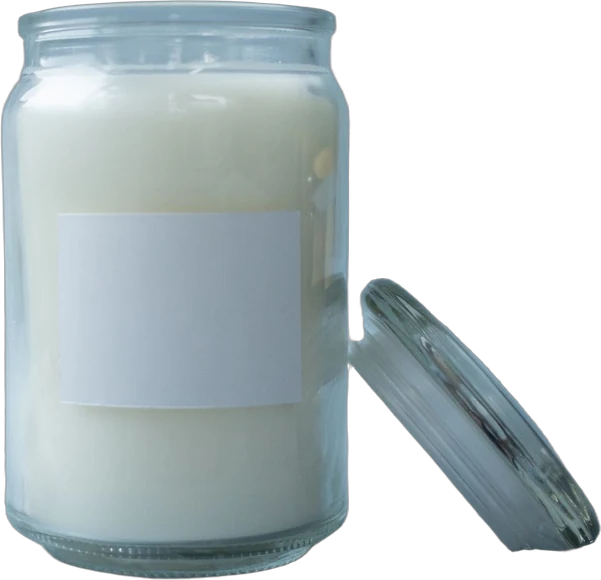
Tallow and Wick makes soy candles in amber glass jars. The first attempt, on printer paper under a kitchen light, came out yellow with a hard shadow behind the jar. The fixes:
- 1Moved to a side window at 11am, with baking paper over the glass.
- 2Curved a sheet of white poster board from a box onto the table.
- 3Put a foam board on the right to lighten the shadow side.
- 4Turned the kitchen light off and the flash off.
- 5Locked focus on the label and raised exposure by about one stop.
- 6In Photopea, raised the white point until the background read 255, 255, 255, then cropped so the jar filled 85% of the frame for Amazon.
The amber glass kept its true colour because there was only one light source. The same setup gives you a clean photo to start any YelloShelf images from.
Quick checklist
- Side light from a window, no direct sun.
- Room lights and flash off.
- A curved white sweep, not a flat sheet against a wall.
- A reflector on the shadow side.
- 1x lens, phone on a tripod, timer on.
- Focus and exposure locked, exposure raised a little.
- Background checked at 255, 255, 255 for Amazon.
- One unedited photo kept for Etsy.
Product photos with YelloShelf
The setup above is cheap and works well, and good source photos give you better results from any tool. If you'd rather not shoot every product on white, YelloShelf makes listing images from the photos you already have, sized per marketplace, including a clean main image. It also drafts the title, description and tags, researched from what's already selling, and social posts with captions and hashtags for Instagram, TikTok, Pinterest, Facebook and X. Check every image against the real item before you upload it. You download the images and upload them to each store yourself.
No subscription or free trial. Pay as you go credit packs from $10, with a 7-day money-back guarantee on your first purchase.
Made by the team behind YelloShelf
Already have product photos?
Upload a product photo and get listing images sized per marketplace, plus a title, description and tags to start from. You check them against the real item before you upload.
- Pay as you go credit packs from $10
- No subscription
- 7-day money-back guarantee on your first purchase
FAQ
Can I take white background product photos with my phone?
Yes. Modern phone cameras are good enough for marketplace photos. Light matters far more than the camera. Use soft window light, a white sweep, a reflector and a steady phone.
Why does my white background look grey?
Your phone exposes for a mid-grey scene, so a mostly white scene comes out dull, and the background may not get enough light. Raise the exposure, add light to the background, and adjust the white point in an editor.
Do I need a light box?
No. A light box can help with small items, but a window, poster board and a foam board reflector do the same job for most products.
How do I make the background pure white for Amazon?
Raise the white point or brightness in an editor until the background reads RGB 255, 255, 255 with a colour picker, or remove the background and place the product on a white canvas. Check the product's colours stay accurate.
Can I use AI to remove the background?
You can use background removal tools, including AI ones, for most photos. On Etsy, keep at least one unedited photo of the item against a real background, and never use editing to hide flaws or change how the item looks.